
Do you occasionally need AI-generated automatic notes from meetings or webinars? As a solution to an occasional need, the digital tools available to all users of the Tampere universities are well suited.
What do I need?
You will need a video recording, M365 OneDrive, M365 Clipchamp (formerly Stream) and Copilot Chat. You can save files to OneDrive folders directly on your computer or access them through a browser. You can find the Clipchamp video editing tool in the M365 service, and you can read more about it on the intranet. Microsoft Copilot Chat is a conversational AI application. Copilot Chat is available to staff and adult students. Read more about Copilot Chat on the intranet.”
What do I need to do?
Recording
You will need a video recording, which is available as a video file. The video recorded with any digital tool. A video file can be, for example, a recording of a Teams or Zoom meeting.
OneDrive
Save the video file to your OneDrive. If you record a meeting in Teams, the video recording of the meeting is automatically saved as a video file to your OneDrive after the meeting.
Open the video file in OneDrive and the video will open for playback in Clipchamp (formerly Stream).

Clipchamp
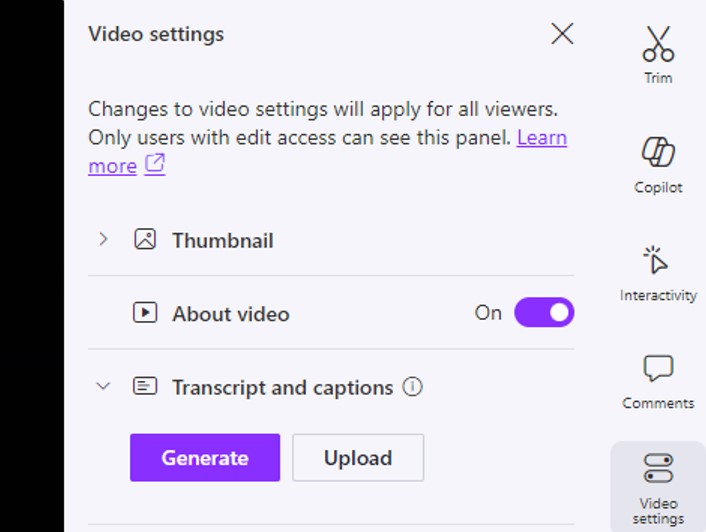
If your video doesn’t already have transcript, add transcriptto your video that are automatically generated: Video Settings > Transcript and captions > Generate. Finally, select the language spoken in the video. The duration of automatic trascription generation depends on the length of the video. You’ll get an estimate of the duration and a notification when the transcript is ready.
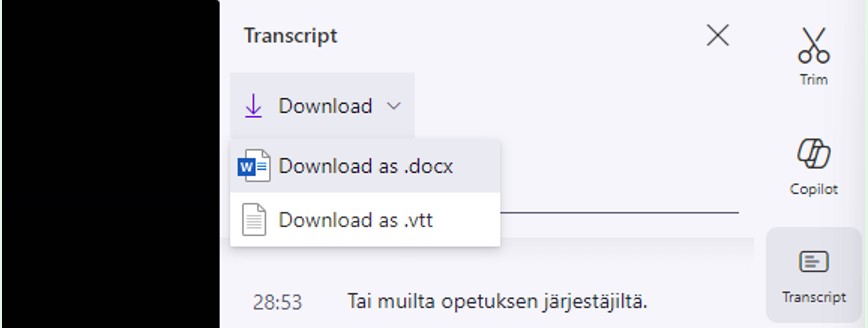
When automatic transcript is available, save the transcription as a file on your computer: Transcript > Download > Download as .docx
Copilot Chat
Open Copilot Chat and add the transcript file to the chat.
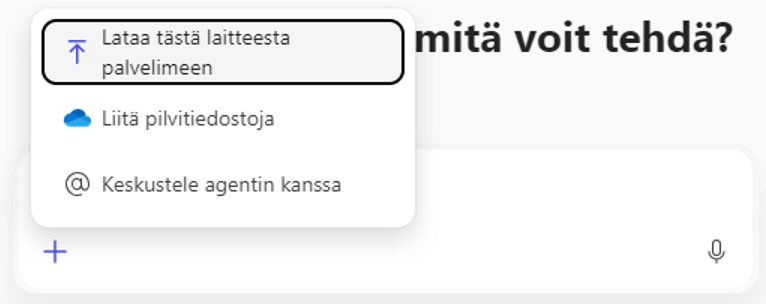
Ask Copilot Chat to generate meeting notes based on the caption file, for example: Create meeting notes from the attached meeting transcript file.
Or if it is a webinar, for example: Create a ten-point summary of the webinar content from the attached webinar transcript file.
What do I need to take into account?
- Remember the data classification! With Copilot Chat using TUNI ID, only public, internal and basic-level confidential information may be processed (data categories 5, 4 and 3). Don’t use Copilot Chat if the video recording contains confidential information that involves additional restrictions or confidential information. For more information, see data classification.
- Do not process meeting transcript files with external AI applications, such as the free version of ChatGPT. Meeting transcript files almost always contain personal data and other confidential information.
- With paid M365 Copilot, which costs an additional fee, you can have even more flexibility to discuss the content of your video recordings directly in the Clipchamp interface. For more information, see M365 Copilot.