

M365 Learning Activities is a tool within the Microsoft 365 environment that enables teachers to easily create various interactive learning tasks suitable for both independent study and use during instruction. With this tool, you can build activities such as fill-in-the-blank exercises, flashcards, and other engaging task types that support practice and memory recall. The tasks are short, clearly defined, and provide immediate feedback. When a student fills in a blank, matches concepts, or practices with flashcards, they instantly receive feedback on whether their answer was correct. Additionally, Learning Activities utilizes gamified elements to enhance repetition and practice.
These tools are also available within Copilot Teach, but now they are also conveniently collected on the Learning Activities page among the M365 applications.
What do I need?
You can find the Learning Activities view among the M365 service applications and also in the M365 Teach view.
How do I need to do?
Go to the M365 service at https://m365.cloud.microsoft/ and select apps from the side menu, or go directly to the application’s page at https://m365.cloud.microsoft/apps . From the list of applications, select Learning Activities.
On the front page, you will see the tasks you have previously created. A small icon next to each task indicates the type of activity. You can review your tasks and edit them, as well as retrieve the code or share link needed for distribution from the Share button. In the upper right corner of the front page, you’ll see the +New activity button, from which you can create new tasks, and the #Join feature, where students enter the code you provide to access the activity.
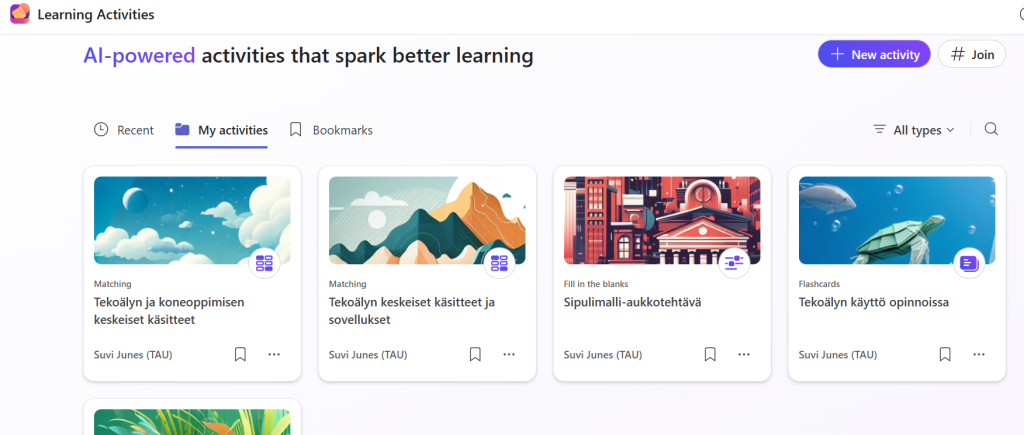
Creating a new activity
Click on the New activity menu on the right to choose the desired activity type. Currently, Learning Activities includes the following tools:
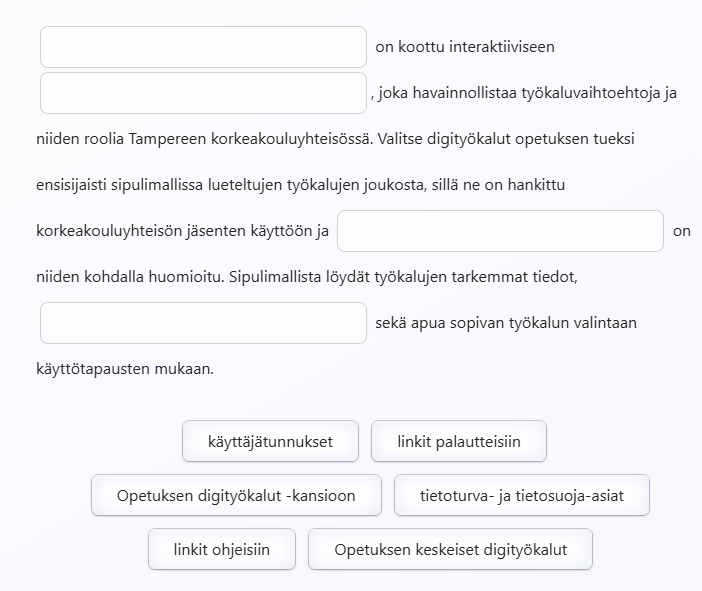
1. Fill in the blanks: Students practice understanding concepts and key contents by inserting missing words into the text.
You can create fill-in-the-blank exercises where you select words in the text to be replaced by blank spaces. Students choose the correct word from the available options to fill in the blank. After answering, students immediately see which responses were correct or incorrect, along with a summary of their attempt.
Enter the text you want to use as the basis for the activity. Choose whether the text can be changed or if you want to keep it exactly as it is. You can also select the difficulty level for the activity.
The text is divided into shorter sections, and some words are chosen for the fill-in-the-blank exercise. Below, you will see the words offered as choices, in addition to the correct answers. You can edit the text. If you put a word in square brackets, it will be included as a blank. You can also add or remove incorrect answers. The AI only makes suggestions, which you can modify as you wish. When you’re ready, click Save activity.
2. Flashcards: These tasks support learning based on repetition and recall.
You can choose from three question types: concept explanation, question and answer, and multiple choice. Enter the content on which the questions will be based, and select the question type. Choose the language and you can request a hint to be created for the questions, which the student can click if they do not know the answer. Click Generate.
Review the generated questions and request corrections or add similar questions if needed. You can also edit the questions and answer choices yourself. By clicking the arrow icon at the top, you can test the question set. When satisfied, click Save activity to create the task.
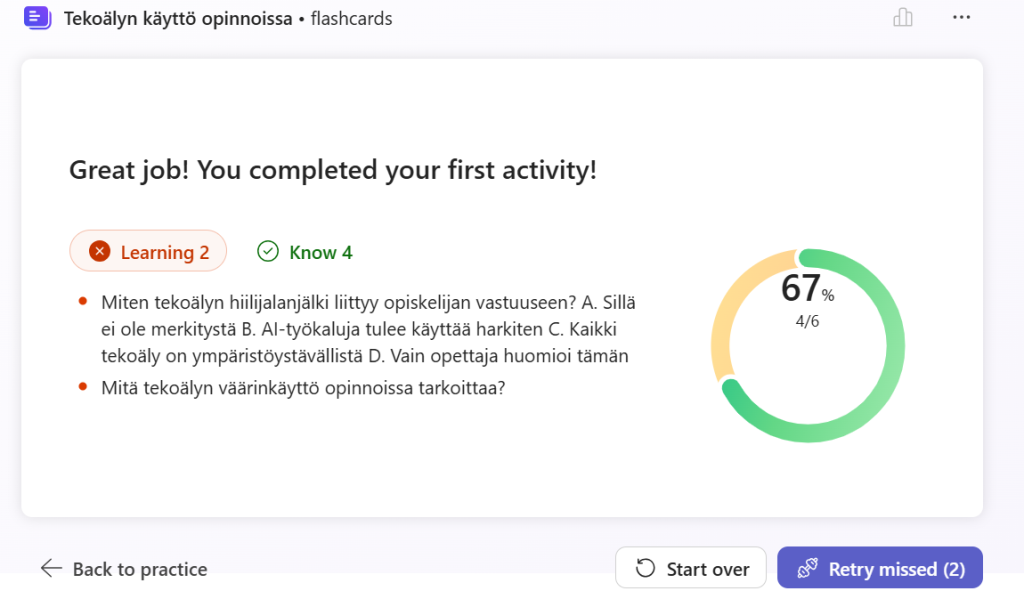
Students see the questions as flip cards, with the correct answer on the other side. The student considers the question, thinks about what the answer might be, and clicks to view the correct answer. The student then clicks the correct/incorrect button below to indicate whether they answered correctly. Although the teacher can see how all the questions were answered overall, they cannot see individual student responses. The questions are therefore suitable as self-study material for a course, but from the answer summary, the teacher can see which topics students found difficult and what should be reviewed with them. Students also receive a summary of their answers at the end and can return to review the questions they answered incorrectly.
3. Matching: The student must find the correct pairs, for example, among concepts and definitions or words in different languages.
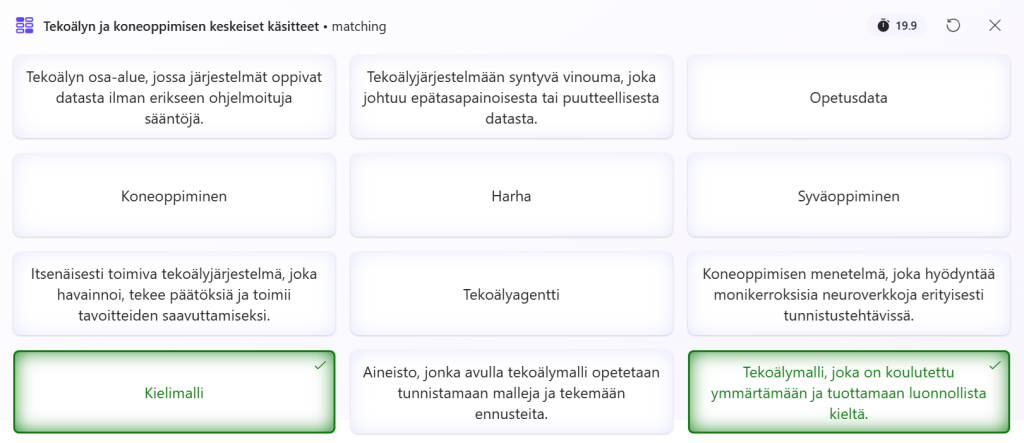
Write the pairs in the text field, such as a concept and its definition or vocabulary. You can also edit and add words before confirming. You can specify whether it is an independent exercise or a timed contest, in which case the student is asked for a nickname and the time taken is recorded.
On the page, students see cards with words and definitions mixed together, and they must pair the cards correctly by clicking them.
Sharing tasks with students
When you click on the activity you created on the front page, you can retrieve a direct link to the task from the Share section or get a code to share with students. The link takes you straight to the specific activity, and the code is entered on the https://learningactivities.edu.cloud.microsoft/ page in the #Join section.
Reviewing responses
Click the task on the front page. You will see a summary of the task, showing how many students have completed it. Learning Activities is designed for students’ independent practice and is therefore a self-study exercise, not an exam. You cannot view individual response attempts, but you will get an overview of the group’s overall performance. In matching tasks, you can enable a setting that allows competition for the fastest completion. In this case, students can enter a nickname when responding, and you can see which nickname performed best.
Learning Activities is also available to students, so you can encourage them to create learning tasks for themselves based on the course content. As an assignment, students could also create and share exercises with each other during the course.
Read more
Also check out the tip M365 Teach: AI tools to support teaching, which includes illustrated instructions for creating tasks.