
Speaker Coach is a tool available in PowerPoint that helps develop presentation and speaking skills. You can rehearse your PowerPoint presentation and receive real-time feedback on the fluency of your speech. This tip explores how to make use of Speaker Coach.
What do I need?
Speaker Coach is found within PowerPoint. The tool is available in both desktop and web versions, but currently only supports English speech and requires the language to be set to English.
You will also need a microphone, as the programme records your speech. You can use your computer’s microphone, a separate device, or a headset microphone.
How do I proceed?
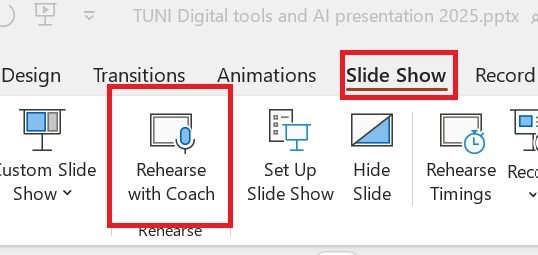
First, create a presentation in PowerPoint or use an existing one. Open the Slide Show tab from the top menu and select Rehearse with Coach.
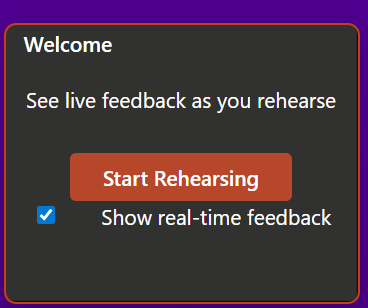
In the window that opens, you can choose whether you want to receive feedback in real time while you are speaking, or only afterwards once you have finished the presentation.
Speaker Coach monitors the following aspects of your speech:
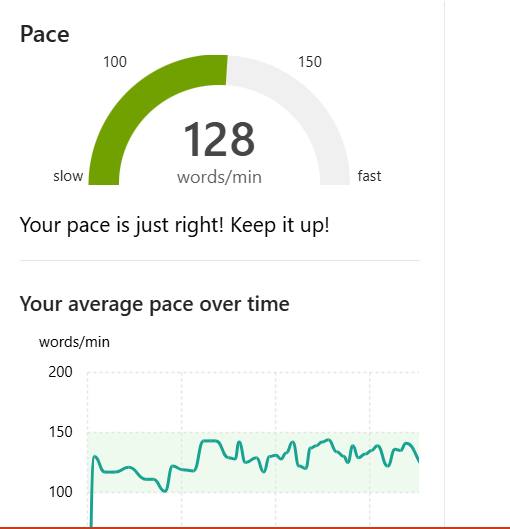
- Speaking pace
- Use of filler words
- Pauses and rhythm
- Monotony and variation in volume
- Inclusiveness and clarity of language
- How much you stick to the slides versus speaking freely outside the presentation
After your presentation, you will receive a summary to help you identify strengths and areas for development. Note that the feedback summary will not be saved if you close it.
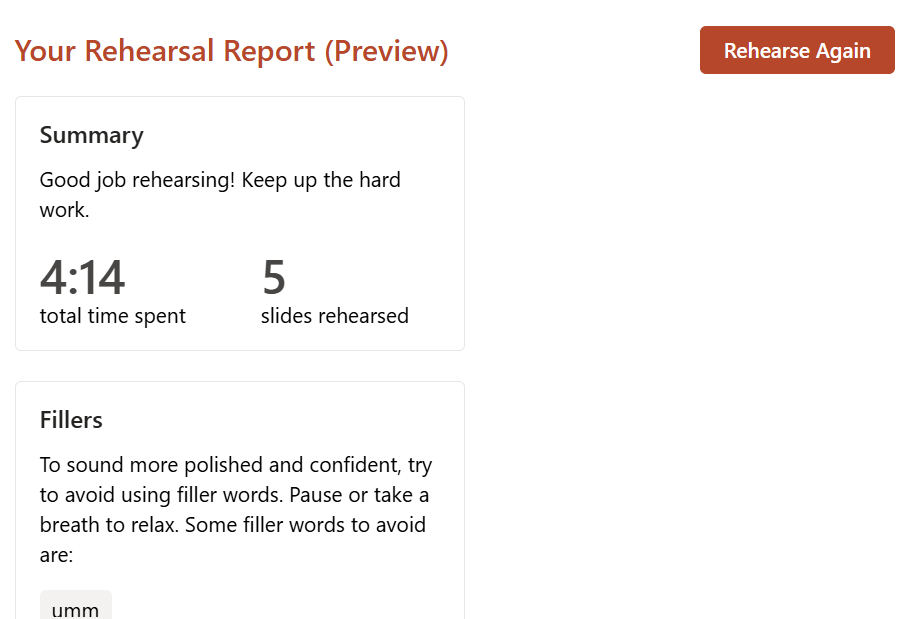
Speaker Coach is excellent for practising presentations and you can always start the practice again. Speaker Coach does not record your speech, so you cannot listen to your presentation afterwards. However, remember that PowerPoint also has a recording feature you can use if you want to listen to your presentation yourself.
Other tools for practising presentations
Learning Accelerators – learning add-ins in Teams
On the Teams Class area, you’ll find the Assignment tool and, within it, a toolkit called Learning Accelerators. Learning Accelerators is not a single tool, but a collection of add-ins supporting different learning areas. You can create assignments for students where they need to make use of learning support tools, such as a presentation rehearsal assistant.
You can select the Learning Accelerators tool when starting to create a new assignment in the Teams class area.
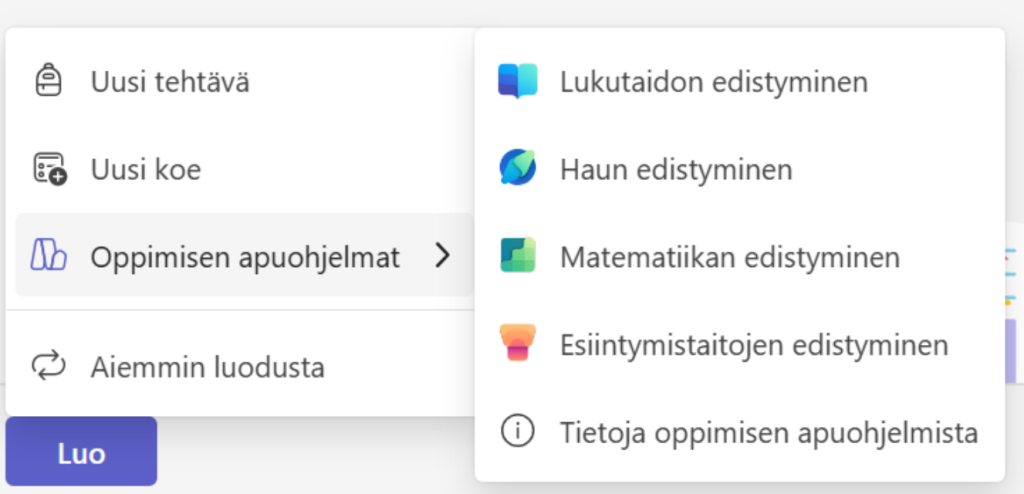
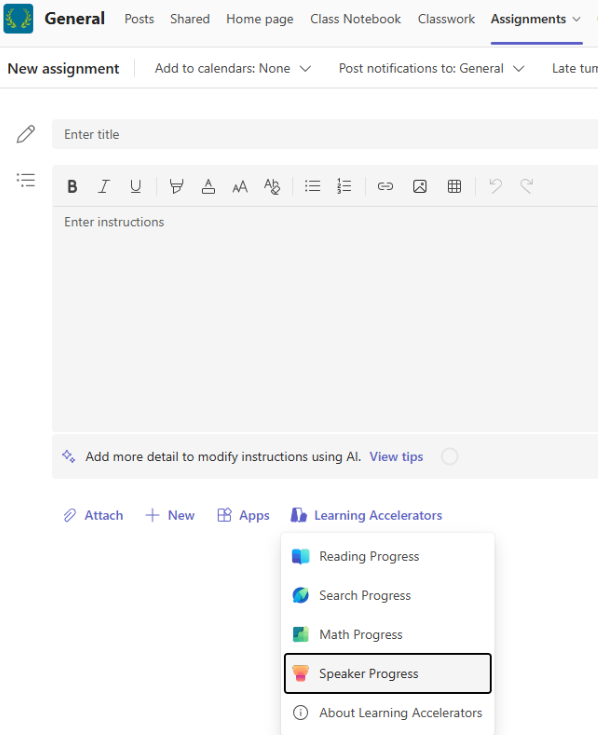
The toolkit includes the following tools:
- Reading Progress: Students read aloud a given text and receive feedback and analysis.
- Search Progress: For practising information retrieval and source criticism. Helps form better search queries and assess sources.
- Math Progress: For monitoring mathematical thinking and problem-solving processes. Supports automatic checking and feedback.
- Speaker Progress: Students practise oral presentations and receive feedback on their presenting, clarity of speech and rhythm.
The teacher can see the feedback and analysis students receive for the assignment.
Read more
Rehearse your slide show with Speaker Coach – Microsoft Support