
M365 Clipchamp is a video editing program that includes tools for creating, editing, and sharing videos. Now, a brand kit tool has been added to Clipchamp, enabling you to create a unified appearance for a series of video materials or to add your project’s or organization’s logo and color scheme to your videos. Using the brand kit makes it easier to maintain a consistent look across your videos. This tip describes how to utilize the brand kit.
What do I need?
You can access the browser version of Clipchamp by going to the M365 service and selecting Clipchamp from the list of applications. Sign in with your TUNI credentials. The former Stream service has now been replaced by Clipchamp, and old Stream links now also direct to the Clipchamp service.
What do I need to do?
In Clipchamp, you can create your own brand kits or use a shared brand kit from your organization. You can add logos, fonts, and graphics to your own brand kit, for example, to share with project members.
Your organization’s brand kit includes a recommended font, color palettes, and logos. Please note the Tampere Universities community’s graphic guidelines for logo usage.
Using the Tampere Universities community’s brand kit:
Select the brand kit function in Clipchamp. Click on the Templates kit under TUNI.fi.
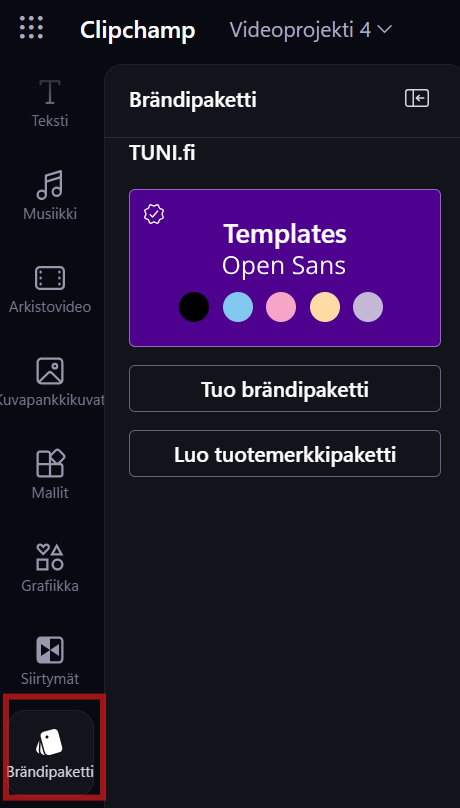
- The Colors section contains the brand colors.
- Fonts include the recommended Open Sans font. Use the recommended Open Sans font in the brand kit for your organization’s graphic materials.
- The Images section contains opening and ending images, for example, an ending image with a slogan.
- The Graphics section contains the organization’s logos and cover images. These logos are in the graphics section because they are pre-positioned in the upper left corner of the image (this pre-positioning is not possible in the logo category).
- There are Finnish and English versions of the logos; select the logo according to the video’s language and choose a logo color that stands out from the background. The logo is positioned in the upper left corner of the video image with space around it; do not place any other text near the logo.
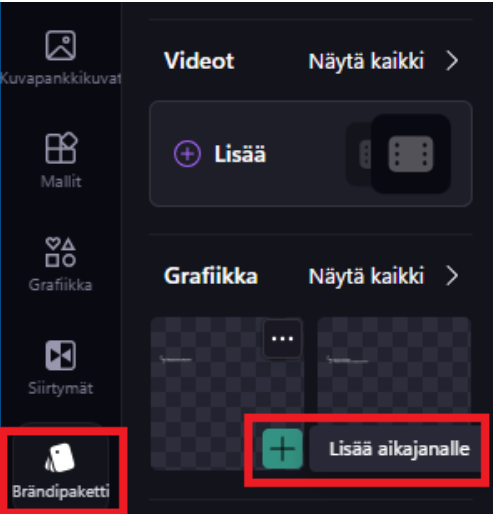
- Add the desired elements to your material on the timeline using the plus icon at the bottom of the element. The Show All link allows you to browse the entire selection.
Please note that you should not use Clipchamp for editing if the material is sensitive and must not be stored in the cloud.
Hiding participants’ names and images using a cover image
In the Graphics section of the brand kit, you will find cover images that you can add on top of videos. Such a cover image places a black bar over the video, which you can position to cover, for example, the participant list shown in a video meeting recording. You can choose from several cover image options in different shapes and orientations.
Example video on adding overlays to Teams recordings