
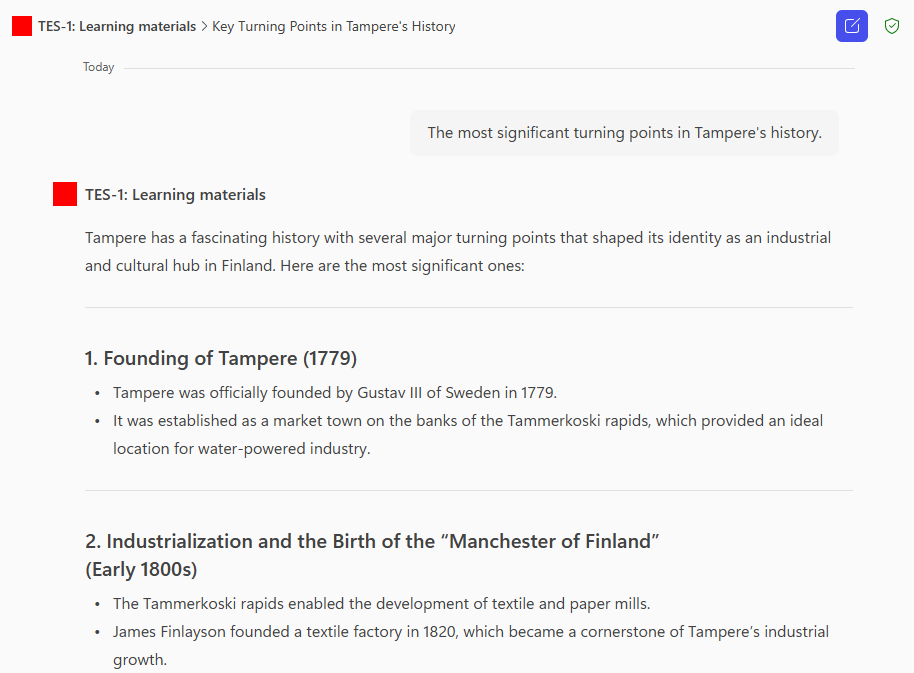
Copilot Chat is available to the staff and students of Tampere universities free of charge at microsoft365.com/chat. With Copilot Chat, you can also create your own AI agents. AI agents are assistants who have been given predefined instructions and limited knowledge, such as a specific website address on which it bases its responses. The agent allows users to discuss the content of public pages that are known to agents. The agent can be implemented for your personal use or, for example, shared with a link to help students.
In addition to public websites, you might also want to use your own course learning materials as the knowledge of the agent. However, adding your own non-public files to the agent’s knowledge requires an additional M365 Copilot license from the agent creator and also from all users of such agent. In practice, this means that the users of such an agent cannot be students, and as far as the staff is concerned, it is necessary to know in more detail whether the users have the necessary license. In this case, if you want to create an agent with Copilot Chat whose knowledge is based on your own files, they must be published online and thus available to Copilot Chat. In this tip, we implement a course learning material agent as an example, which uses PDF files published on the teacher’s own website as knowledge.
What do I need?
You’ll need a personal home page (homepages.tuni.fi service), WinSCP software, and Copilot Chat.
The Copilot Chat agent can use public information on the Internet, such as PDF files, as knowledge. To create and use such a Copilot Chat agent that uses public knowledge, it is enough to use Copilot Chat, which can be used by all users of the Tampere universities. In other words, the users of the agent can be, for example, students of the Tampere universities.
Note that this tip is aimed at more advanced users, but by following the instructions, anyone can do it.
What should I do?
Get your own personal homepage (homepages.tuni.fi)
Read the ordering instructions on the intranet and follow the instructions.
Add PDF files to your personal homepage
You will need WinSCP software, which you can install on your computer from the Software Center. See more detailed instructions on the intranet under Site update.
Use WinSCP to connect to your own website.
For PDF files, create a new subfolder on your home page.
Add the PDF files that you want to use as agent knowledge to the subfolder you created.
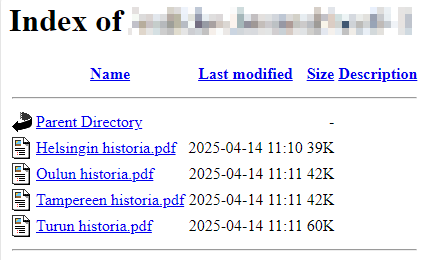
In the subfolder you created, add the .htaccess configuration file (text file, name blank and extension .htaccess) with the setting as described on the help page: Options +Indexes
The setting adds an automatic listing of files to the subfolder and helps in the next step, i.e. indexing the content of the home page.
The agent’s files are now publicly visible on the web at: https://homepages.tuni.fi/your.name/subfolder
Report and index your homepage to the Bing search engine
If your website is new, its content will not be immediately found on online search engines. The Copilot Chat agent uses Microsoft’s Bing search engine. The agent won’t work until your homepage and the files you’ve added can be found on the Bing search engine. To make it faster to find content on the Bing search engine, report your site to Bing. After a brand new site is reported, it can take up to a couple of weeks for the content on your homepage to be indexed and found in Bing.
Sign in to Microsoft Bing Webmaster Tools:
https://www.bing.com/webmasters
Use your personal Microsoft ID to sign in. You cannot use your TUNI ID to log in. If you create a new Microsoft ID, don’t use your @tuni.fi email address as your email address.
Add your personal home page to Bing Webmaster Tools by following the service’s own instructions. The easiest way to verify ownership of the website is to use the “XML File authentication” option in the instructions, i.e. upload the BingSiteAuth.xml file to the root folder of your personal website using the WinSCP program.
After confirming ownership, submit your home page address and the address (subfolder) of the page you created for the agent to be indexed by Bing:
https://www.bing.com/webmasters/submiturl
For example:
https://homepages.tuni.fi/your.name/
https://homepages.tuni.fi/your.name/subfolder
Test the content of your website with Bing
After a brand new site has been submitted to be indexed, it can take up to a couple of weeks for the content on your homepage to be indexed and found in Bing.
If your site has already been indexed by Bing, it usually takes only a day for the new content on your homepage to be indexed and found in Bing after just submitting a new subfolder for indexing.
Open the Bing search engine:
https://www.bing.com
In Bing, perform a targeted search for your own home page by entering the following in the Bing search box:
site:https://homepages.tuni.fi/your.name/subfolder keyword
Search with a keyword that is sure to be found in the content of the PDF files you add.
If your search finds results, Bing has indexed the PDFs in the subfolder and you can use them as knowledge for the agent.
Create a new Copilot Chat agent
Open Copilot Chat. On the left, you will see a sidebar and there the Agents heading. In the list, you will see the agents you have already created and the Create agent button below them.
First, if necessary, see the basic features and instructions on how to create Copilot Chat agent: Build AI assistants with Copilot Agent builder
Create a new Copilot Chat agent
Click the Configure button and build the agent by providing the required information.
Agent icon
Optionally, add a custom icon for the agent as an image file.
Name
TES-1: Learning materials
Description
Ask and chat with the AI agent about the learning materials for the course “TES-1: Test Course 1”.
Instructions
By describing the required Copilot Copilot agent activity, you can ask Copilot Chat for advice and get a draft of the agent’s instructions that you can edit and improve yourself.
For example:
I am creating a Copilot Chat agent. I am a university teacher. I have my own homepage with a subfolder containing the course learning materials as PDF files. The homepage and the subfolder address is: https://homepages.tuni.fi/your.name/subfolder
What kind of instructions should I give to the agent so that students can ask questions and chat with my learning materials?
In this example, the final agent instructions are:
Role:
Act as support for a university course, helping students understand the learning materials provided as PDF files.

Guidelines:

Content knowledge:
- Read and understand all available PDF files.
- Use the content of the files to answer students’ questions as accurately and professionally as possible.

Handling questions:
- Answer questions related to course theory, examples, exercises, or concepts.
- Provide explanations, summaries, and examples based on the learning materials when needed.

Limitations:
- Do not answer questions unrelated to the course content.
- Do not make assumptions about content that is not found in the PDF files.
- Do not give personal opinions or assess students’ skills.

Practical support:
- Help students find the correct file or section if they ask where something is located.
- Explain difficult concepts in simpler terms or offer alternative ways of presenting them.

Language support:
- Respond in English unless the student specifically requests an answer in other language.
Knowledge
Add the address of your homepage subfolder as knowledge.
Example: https://homepages.tuni.fi/your.name/subfolder
Finally, select the setting: Only use specified sources.
Capabilities
In typical use cases, there is no need to select anything.
Suggested prompts
If you already know the most frequently asked questions, you can add them as suggested prompts. Suggested prompts are available for the agent’s users to select and can serve as examples or speed up common queries.
Create
When all settings are ready, create the agent by clicking the Create button.
Share
Finally, you can share the agent for use by all users of the Tampere universities who know the link, or you can share the agent only with individual users.
What do I need to take into account?
- The Copilot Chat agent cannot be completely forced to use only the knowledge (website) provided to it in its responses. An agent primarily uses the assigned knowledge, but in certain cases agent can still respond using their general knowledge.
- The knowledge website URL may be at most two levels deep, e.g. https://homepages.tuni.fi/level-1/level-2/.
- Remember copyright. Publish only your own files on your homepage or files you have permission to publish, or files whose open copyright licenses allow publication (e.g. open CC licenses).
- Adding your own non-public files as knowledge for the agent requires a paid M365 Copilot license for the agent creator and also for all users of such an agent. In practice, such an agent’s users cannot be students, and for staff, you need to know whether they have the required license. See more details: paid M365 Copilot license