

Copilot Notebook, available in M365, is an AI-assisted workspace where you can bring together materials related to a specific topic or project and use them to create new materials, summaries, and notes. You can also discuss the contents with the Copilot AI assistant. Copilot uses the content added to the notebook in its responses, giving you context-based answers that are directly relevant to the topic or project.
Instead of having to open several files or write a long prompts and explanation for each conversation, Copilot in Notebook already knows the background and the contents. You can ask it to create, for example, summaries, a study guide, an audio overview, or a mind map on the topic.
What do I need to do?
You can find Notebook in M365. You will see Notebooks in the menu on the left. (If Notebooks is not visible there, open the app launcher on the service homepage and select Notebooks.)
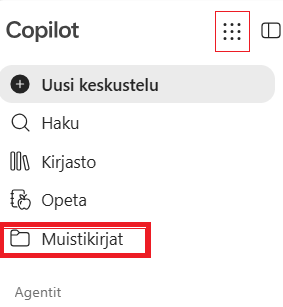
On the page that opens, you will see the notebooks you have created previously as well as notebooks shared with you.
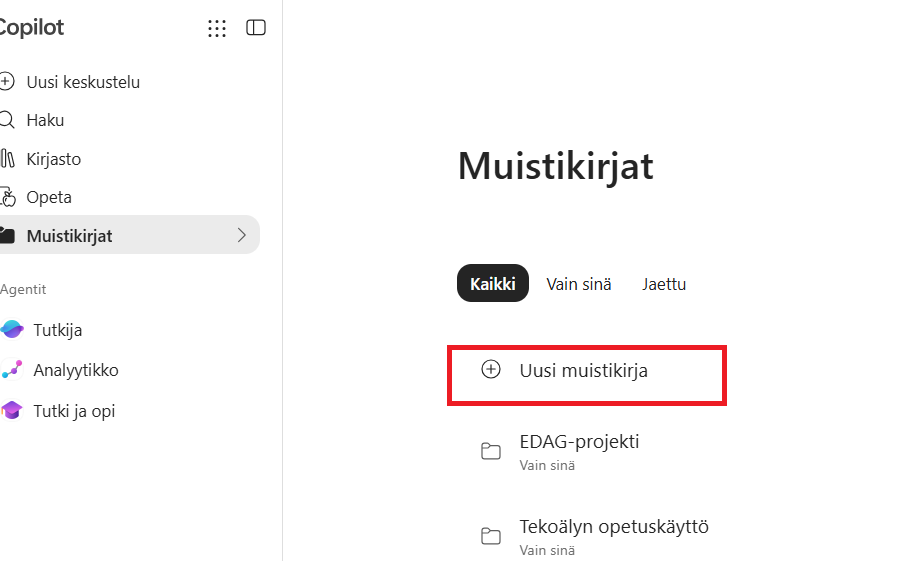
You can create a new Notebook by clicking + New Notebook. Name the notebook and select the contents to be used in it. The contents can include files and links. If you have a paid Copilot license, Notebook will also suggest files you have opened recently. You can add more content later as well.
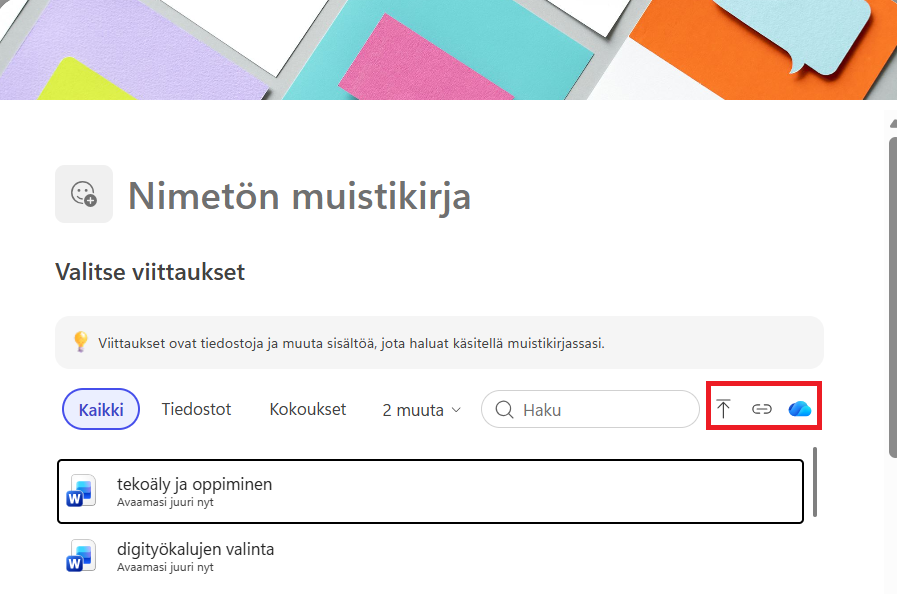
A key principle when using Notebook is to first add the files and links you want to use as source material. Once the content has been added, you can start discussing it with Copilot and creating new content based on the materials.
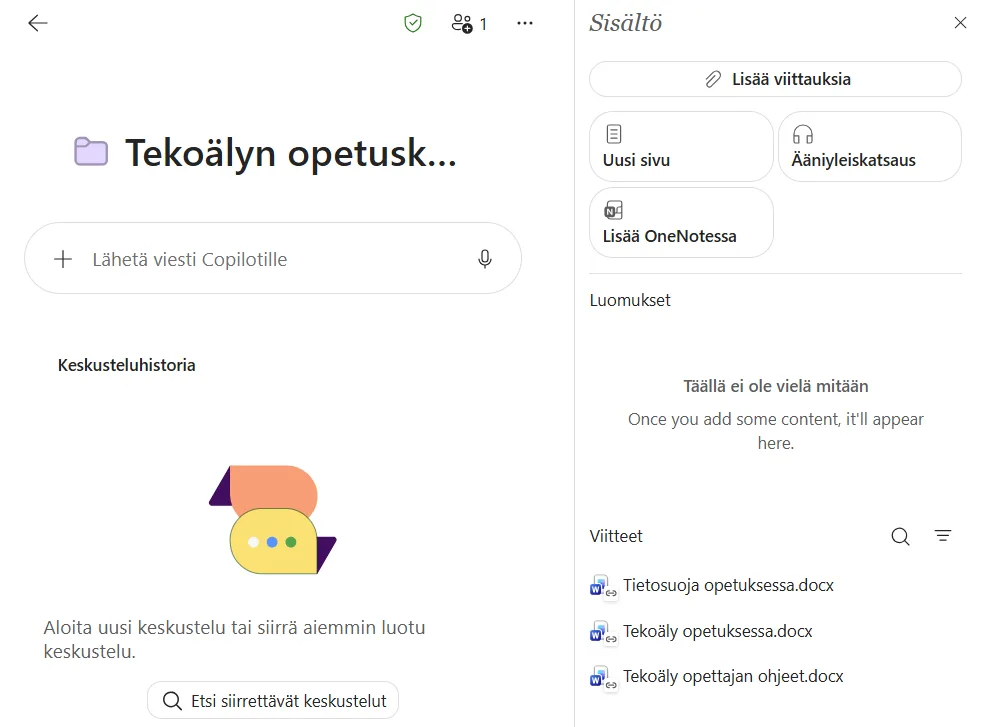
Once you have created a Notebook, its main page is divided into different sections. The main area contains the Copilot chat, where you can ask questions and discuss the content you have added. On the right, you will find the Content section, where you can add more files and links as source material and create new content based on them.
In the browser version, you can currently create a text page. You can also select Add in OneNote to open the Notebook in OneNote, where study guide, mind map and infographic are available. Note! If you have Copilot for M365 (paid license) you can find additional tools, like audio/podcast-tool.
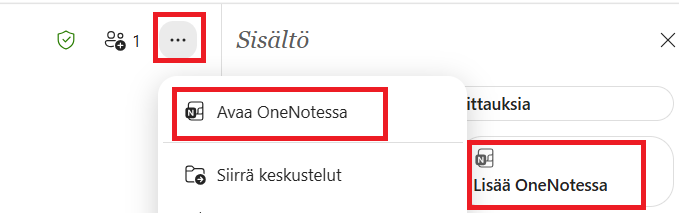
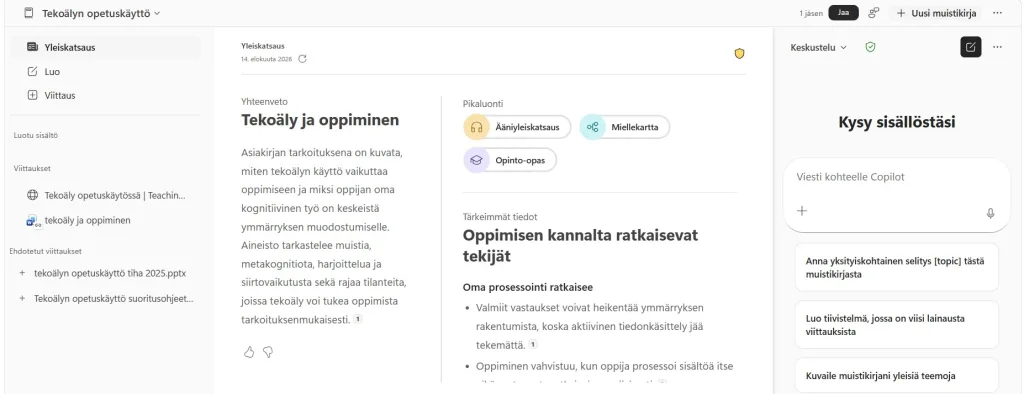
You can open Notebook in OneNote. There you have more tools to create contents. In OneNote the main page has three columns:
- On the left, you can see the content you have created, such as study cards, audio files, or your own notes. You can also create more content from the Create section. On the left, you can also see the background materials selected for the Notebook.
- In the middle, you will find an overview created based on the materials, as well as other materials generated according to your selections.
- On the right, there is a chat window where you can discuss the Notebook content with AI and ask it to create new content based on the materials.
In addition to conversation, Copilot Notebook offers built-in features that allow the material to be processed in different ways. For example, Copilot can create the following based on the materials:
- A Study Guide, which brings together key concepts, main themes, and review questions to support learning.
- A Mind Map, which visualizes the connections between topics and concepts found in the material.
- Summaries and condensed versions that make it easier to quickly become familiar with extensive materials.
What makes Notebook especially useful is that all outputs are based specifically on the materials you have added to the Notebook. This means Copilot acts more like a project-specific expert than a general conversation partner.
In learning contexts, Notebook can be used, for example, to analyse course materials, prepare for exams, structure research materials, or review extensive project documents. A student can create a study guide and different types of exercises from the material, such as fill-in-the-blank exercises, flashcards, or self-study quizzes. A teacher can use Notebook to compile materials, support planning, and create summaries.
Sharing a Notebook
You can share a Notebook you have created with people who have a TUNI user account. In the upper-right corner, there is a Share button that lets you select the people with whom the content will be shared. The chat conversations held in Notebook are personal, so everyone can see the summaries and content added to the Notebook, but they can also create their own content from it to support their own learning.
Read more