
The TAMK template is a course template available in TUNI Moodle for studies offered by TAMK. It supports a consistent and accessible course structure, speeds up course creation, and improves the student experience. This tip explains how to use the TAMK template on a new Moodle course and how to adapt an existing course to match the template.
Using the TAMK template on a new course
The TAMK template can be used both on courses created through a Peppi implementation and on courses created in Moodle’s Other category. Moodle courses should primarily be created through a Peppi implementation.
Courses created through a Peppi implementation
- Open the Peppi implementation for which you want to add a Moodle course and go to the Learning environments tab.
- Select “+ Add workspace”, choose TUNI Moodle as the learning environment, and save.
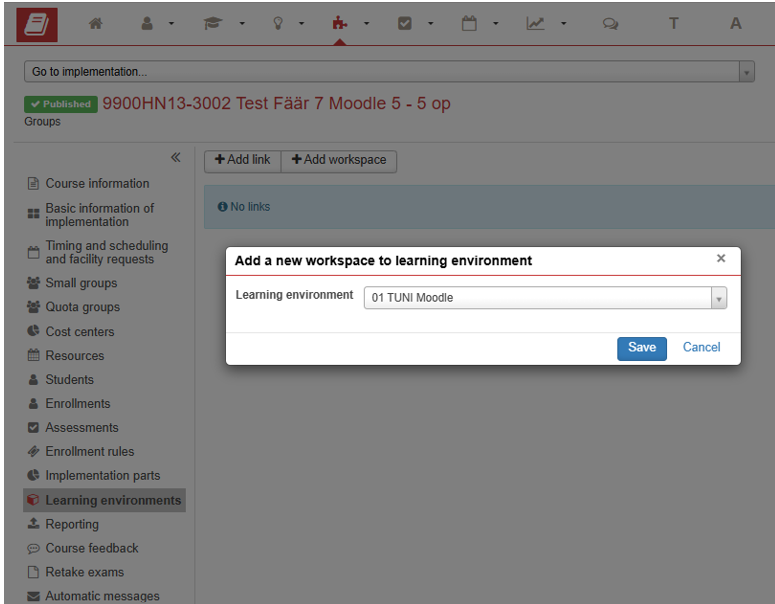
- The course link will appear under Learning environments. You can also find the course through the Moodle dashboard. Open the course in Moodle.
- The course opens in Kickstart format. Under Course templates, select TAMK template or, if needed, the Finnish-language TAMK-pohja by clicking the Use template button.

- The course will then follow the TAMK template structure, which the teacher can modify and complete as needed for the implementation.
Courses created in Moodle’s Other category
- Create a new course area in Moodle’s Other category. This requires the Course Creator role. Instructions in the TUNI Moodle quick guide.
- Define the course settings and save.
- The course opens in Kickstart format. Under Course templates, select TAMK template or the TAMK-pohja in Finnish by clicking the Use template button.
Adapting an existing course to match the TAMK template
There is no automatic way to convert an existing Moodle course to match the TAMK template. The course must be adapted manually by using Moodle’s Import function.
The process is as follows:
- Create a new empty Moodle course, primarily through a Peppi implementation, and apply the TAMK template to it.
- Use the Import function in the new course to copy the contents of the previous implementation into the new course template.
- The Import function copies all course activities and resources.
- The names of sections 0–6 and the text in the section description fields are not copied. Add them, for example, by copying the texts from the previous course.
- Move the activities, resources, and texts manually into the correct sections in line with the TAMK template instructions. Add or update the course content as needed.
See also:
TAMK template for an existing course – a recording in Finnish from Digital Pedagogy Team session on 10 April 2026 (section 11:12–22:00)