

In a Copilot Chat conversation, you often create content that you would like to return to later, such as a useful plan, instructions, a draft text, a list, or a carefully refined prompt. Copilot Pages is designed for turning this kind of content into more permanent material that you can edit and share with others. You can use Pages to save responses from Copilot Chat and continue working on them. Instead of copying content from your conversations into Word, for example, you can make all the necessary edits directly on a Copilot Page. You can edit the content yourself or with the help of Copilot Chat.
What do I need?
You can find Pages in Microsoft 365. Sign in with your TUNI account.
What do I need to do?
You can work with Pages in two ways: Create a page first and then start a Copilot Chat conversation alongside the page or start by chatting with Copilot, and then add useful content from the conversation to a new or existing page.
Library:
If you have already created Pages, you can find them in the Library on the left-hand side of the Copilot home page. The Library allows you to view Pages you have previously created. Images that copilot has created are also stored in Library.
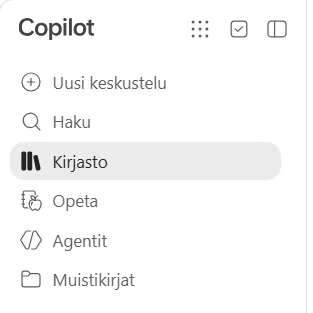
You can create a new page by selecting Create on the right-hand side.
Copilot Chat:
You can also create a new page directly from a Copilot Chat. Select the + icon next to the message field to create a new page.
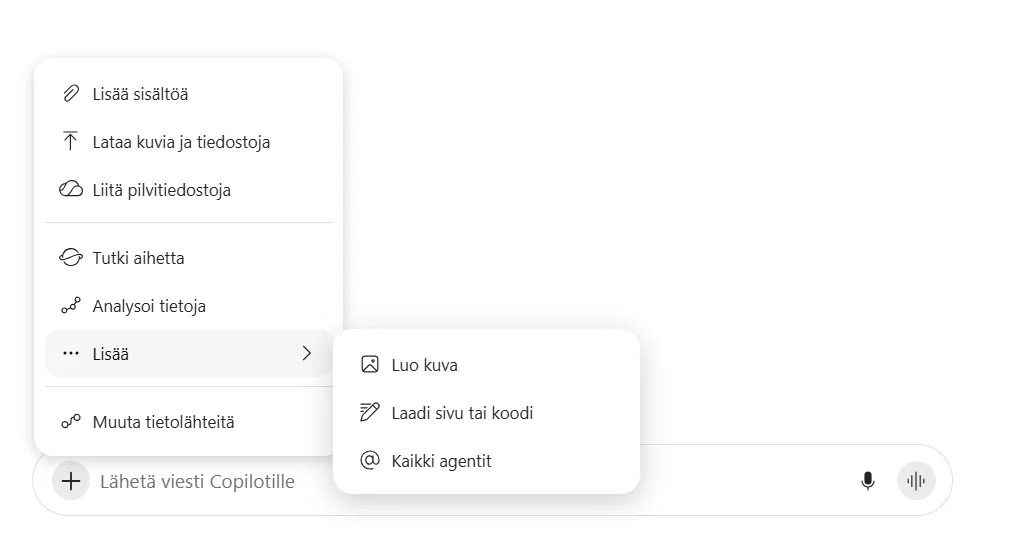
When Copilot provides a response that you would like to save to a page, select the three dots below the response, choose the pencil icon, and add the content to a page.
Copilot Page:
When you create a page, Copilot automatically gives it a name based on its content. You can rename the page later.
On the page, you can edit text and add other elements, such as tables, lists or code.
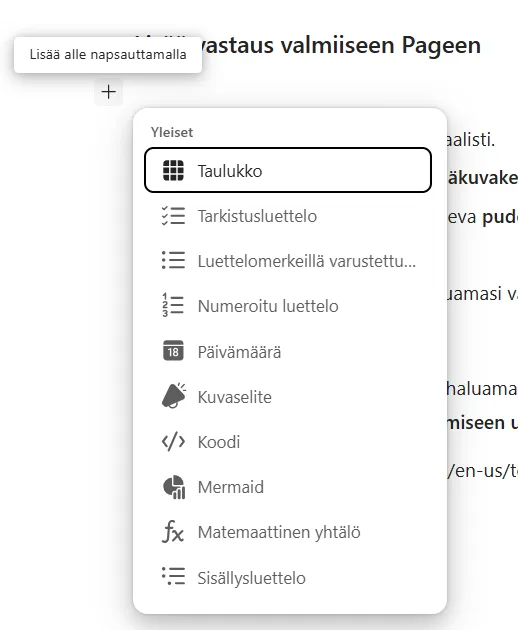
Select the + icon on the right-hand side of the text to open the menu for adding different types of content.
You can also edit the text with AI directly on the page. For example, you can create a page first and then use Copilot Chat alongside it to generate and refine content for the page.
The Copilot button in the bottom-right corner provides additional editing options. You can use Copilot to rewrite the content in different styles or adapt it for different audiences and purposes.
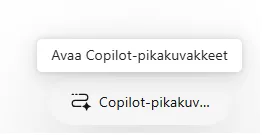
By selecting Add content, you can also open Copilot Chat next to the page and add new responses from the conversation directly to the page.
Sharing a page
At the top of the page, you will find the Share button, which allows you to share the page with others. You can also find options for exporting the page to a notebook or printing it as a PDF.