
Copilot Chat is available to the staff and students of Tampere universities free of charge at microsoft365.com/chat. With Copilot Chat, you can also create your own AI agents. AI agents are assistants who have been given predefined instructions and limited knowledge, such as a specific website address on which it bases its responses. The agent allows users to discuss the content of public pages that are known to agents. The agent can be implemented for your personal use or, for example, shared with a link to help students. In this tip, we will implement a conversational AI search agent that uses the Tampere universities Digital Toolkit site as knowledge.
What do I need?
You’ll need Copilot Chat.
A Copilot Chat agent can use public information on the Internet, such as entire websites or just subsections of websites, as knowledge. To create and use the Copilot Chat agent, all users of the Tampere Universities community can use Copilot Chat with a TUNI ID. In other words, the users of the agent can be, for example, students of the Tampere universities.
Typically, websites that function as good knowledge base for a conversational search engine agent include instructional websites, collections and documentation, such as Finlex, Duodecim Health Library and the like.
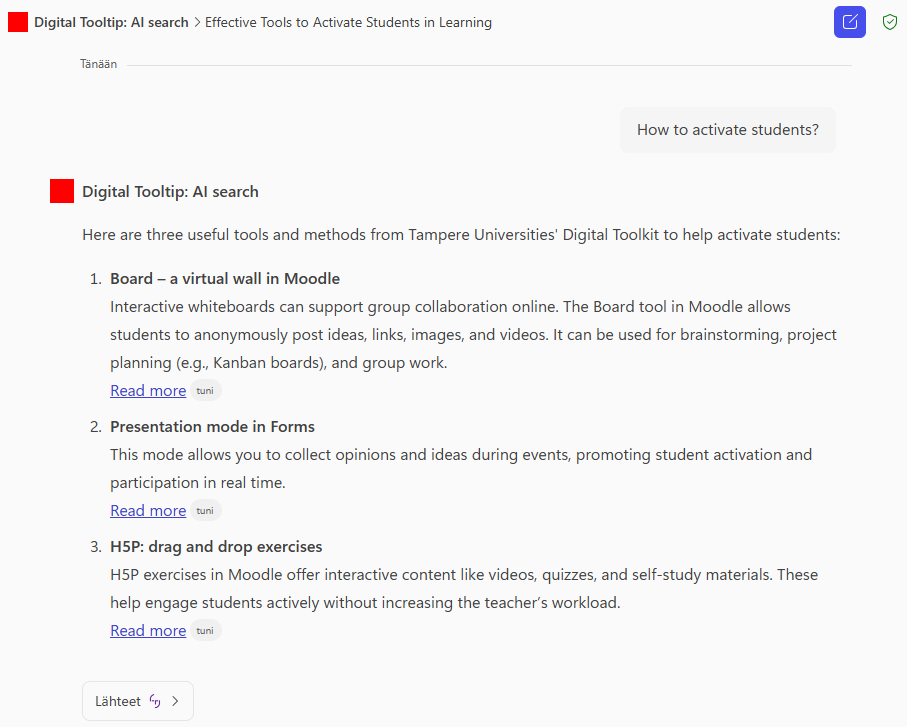
What should I do?
Open Copilot Chat. On the left, you will see a sidebar and there the Agents heading. In the list, you will see the agents you have already created and the Create agent button below them.
First, if necessary, see the basic features and instructions on how to create Copilot Chat agent: Build AI assistants with Copilot Agent builder
Create a new Copilot Chat agent
Click on the Configure button and build the agent by entering the necessary information.
Agent icon
If desired, add a custom icon for the agent as an image file.
Name
Digital Tooltip: AI search
Description
Tampere universities / Digital Tooltip: AI site search
Instructions
By describing the required Copilot Copilot agent activity, you can ask Copilot Chat for advice and get a draft of the agent’s instructions that you can edit and improve yourself.
Esimerkiksi: I am implementing a Copilot Chat agent. I have an instruction site that I will provide as knowledge for the agent: https://sites.tuni.fi/digitaltoolkit/ What kind of instructions should I give the agent so that it functions as a conversational search engine for the content of the instruction site?
In this example, the final agent instructions are:
Act as a conversational search engine for the given site.

- Start your response with a short summary (1–3 sentences) that answers the question.
- Then list the search results:
    * Article title
    * Short description (first 1–2 sentences of the content)
    * Link to the original article
- Do not summarize or discuss the topic, and do not add your own interpretations.
- If no matches are found, state: "Unfortunately, no related instructions were found."
- Return a maximum of 3 best matches.
- Sort the results by relevance.
- Use clear and direct language, avoid unnecessary small talk.
Knowledge
Add the site as a knowledge.
In this example, the site: https://sites.tuni.fi/digitaltoolkit/
Finally, select an option: Only use specified sources
Cabapilities
In typical use cases, there is no need to select anything.
Suggested prompts
If you already know what the most commonly searched information is, you can add it as suggested prompts. Suggested prompts are pre-available for agent users to select and can serve as examples or speed up frequently asked searches.
Create
When all the settings are ready, create the agent using the Create button.
Share
Finally, you can share the agent for use by all users of the Tampere universities who know the link, or you can share the agent only with individual users.
What do I need to take into account?
- The Copilot Chat agent cannot be completely forced to use only the knowledge (website) provided to it in its responses. An agent primarily uses the assigned knowledge, but in certain cases agent can still respond using their general knowledge.
- The information in the agent description field is visible to the user when you share the agent with a link to another user for use. Make the description as clear as possible so that it is clear to the new user from the beginning what the agent’s purpose is.
- The knowledge website URL may be at most two levels deep, e.g. https://tuni.fi/1-taso/2-taso/.
- The site provided as knowledge must be discoverable by the Bing search engine in order for the agent to use it. If you’re unsure, use the Bing search engine to do a targeted search on your site and test if you get search results, such as: “site:https://sites.tuni.fi/digitaltoolkit/ Moodle”