
TUNI Moodle will be updated to version 4.5 on July 1, 2025. This tip intruduces the changes and new features.
1. Changes in course structure and appearance
Topics course format is now called Custom sections
The most common course format, Topics, is now called Custom Sections. This format still allows you to create and name sections as you wish.
Subsections help with grouping
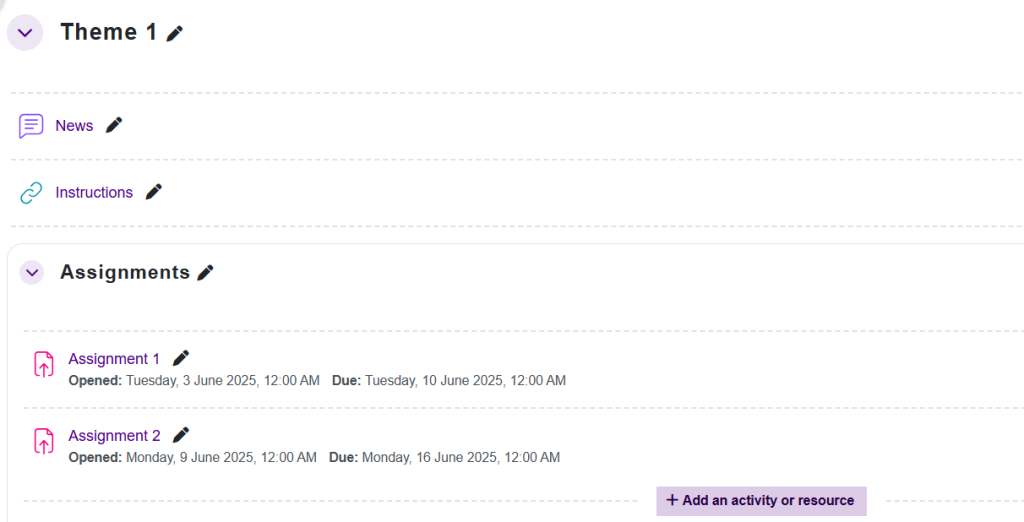
Course areas that have lots of documents and activities, might benefit from the subsections. Previously, this was done with headings or indentation, but now the new Subsections feature allows you to divide content into distinct parts and label them accordingly.
In this picture, within Theme 1, the assignments related to the theme are separated into a subsection.
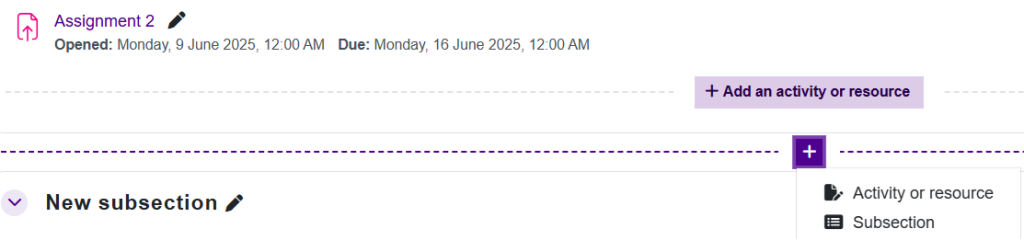
You can add subsections by clicking the + icon that appears below the sections when the editing mode is on. From the same icon, you can also add activities or resources to any part of the course area you want.
New icons for activities and resources
With the new version, the icons for adding activities have been updated. The new colors indicates the purpose of the tool: red for task and assessment tools, blue for collaboration tools, yellow for external tools, and green for resources and materials.
Quick changes with Bulk actions
The new version allows you to make changes to multiple tools at once. Bulk Edit can be found at the top of the course page when editing is turned on.
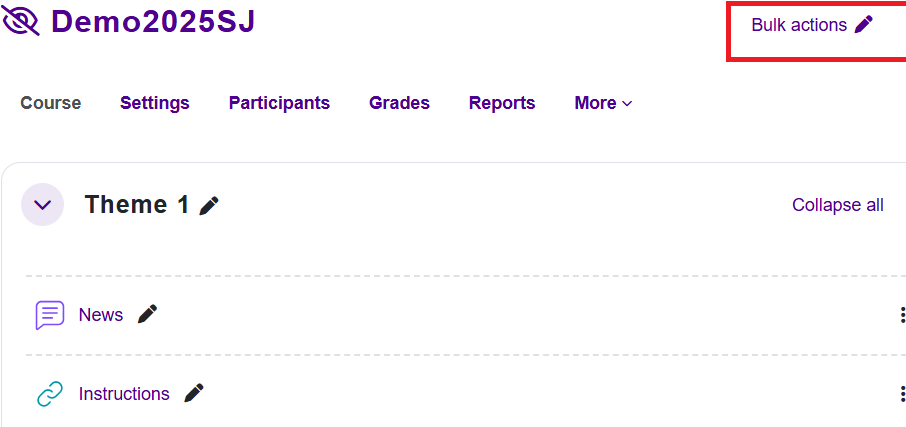
Checkboxes will appear next to each section, resource, and activity, allowing you to select the contents you want to modify. A tool bar will also appear at the bottom, from which you can choose the changes you want to apply to the selected tools. You can hide or publish, copy, move, and delete multiple contents at once.”

2. New Features in the Assignment Tool
Submissions found under the Submissions tab
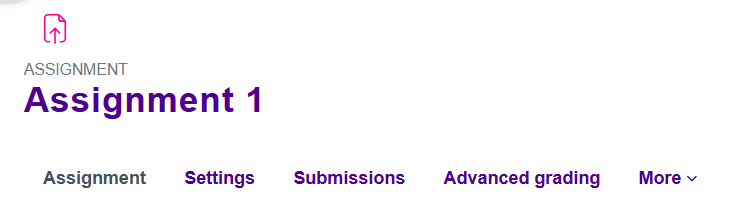
Previously, submissions and feedback were found under the View all submissions button. In the new version, they are located under the Submissions tab at the top.
Grant extra time for assignments
From the Submissions table, you can grant extra time for individual students. Click the Grant extension button found under the three dots on the student’s row. You can define the extention and the new time limit for that student.
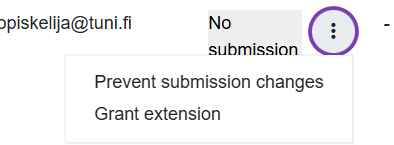
Allow multiple attempts
In the assignment settings, you can define if a student can make multiple attempts. In the Submission settings section, you can specify the number of attempts and the conditions under which a new attempt is allowed.
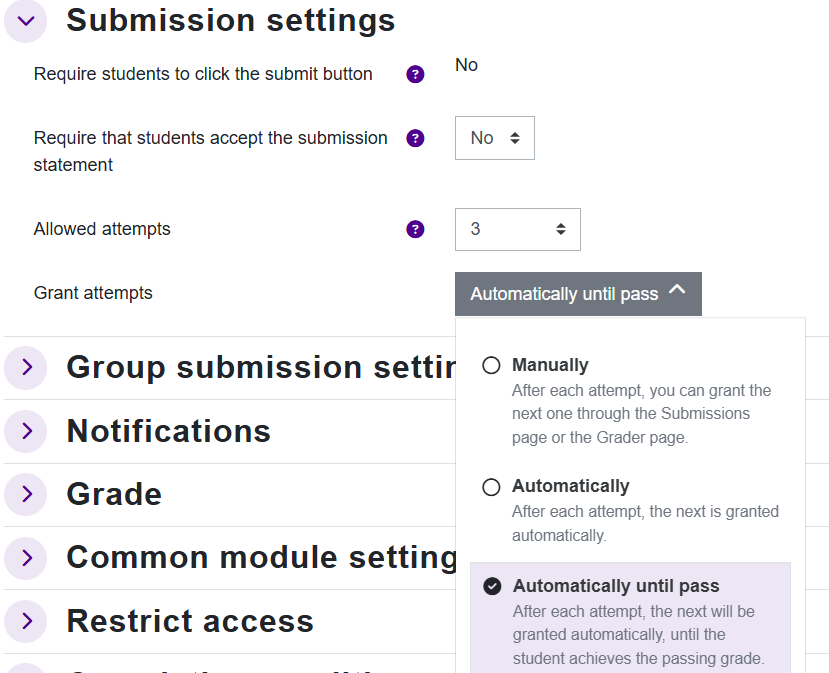
3. New Features in the Quiz Tool
The quiz tool has many new features, such as customizable question numbers and assessment items within a quiz. The question bank now allows easy reorganization by dragging and has a new search and filter interface.
New Ordering question type
In the Ordering question type, the student is shown several items (words, sentences, images, or other media) in a random order. The student must arrange the items in the correct order according to the instructions. The student sees a jumbled list of items and must use the arrow keys to arrange them.
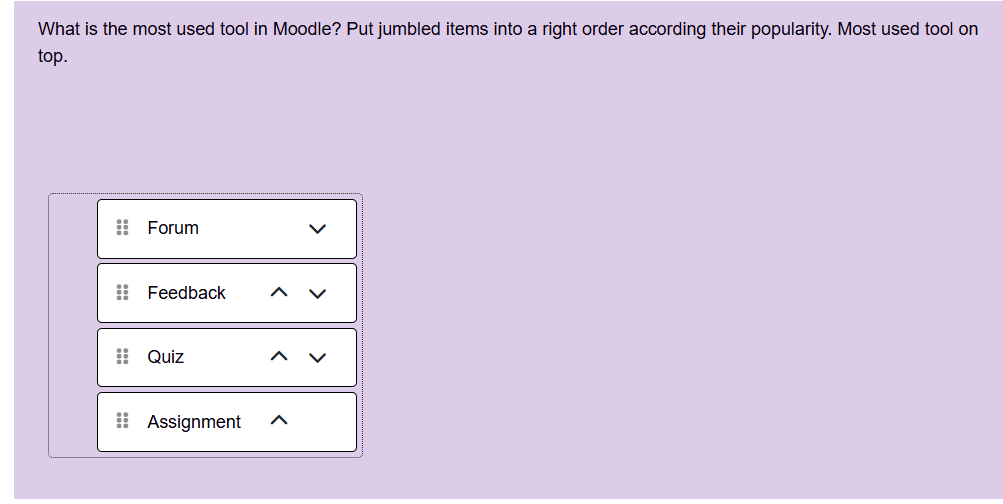
Other Changes and New Features
- Big version update for STACK qustion type, from version 4.4.6 to version 4.9.1 STACK Release Notes
- New Turnitin activity.
Read more:
Short videos about the new features (Youtube):
- Course page improvements in Moodle 4.2
- Activity cards redesign
- Course page improvements in Moodle 4.4
- Activity icons in Moodle 4.4
- Subsections in Moodle 4.5
- Bulk editing
- Assignment improvements in Moodle 4.5
- Gradebook enhancements
- Forum Improvements in Moodle 4.4
- Quiz Improvements in Moodle 4.4
- Ordering question type in Moodle 4.4
- LTI External tool improvements
A more detailed list of changes can be found on Moodle’s own New Features pages:
Moodle 4.2 | Moodle 4.3 | Moodle 4.4 | Moodle 4.5