
Microsoft 365 includes over 30 useful tools. The most well-known applications are Outlook for email and calendar and the office programs Word, Excel, and PowerPoint. The M365 tools are available not only as desktop applications but also through the browser in the M365 portal, where all the available applications have been found in the waffle menu. Now the M365 portal interface has changed, and the waffle menu has been removed. You can still find the familiar applications in the service, but in a slightly different place. In the home page of portal, Copilot AI chat has taken a more prominent role. This tip introduces the renewed M365 portal.
How to find the portal?
he main page address for the M365 service is https://m365.cloud.microsoft. The portal’s name has been changed to M365 Copilot, and the Copilot Chat view is visible on the homepage.
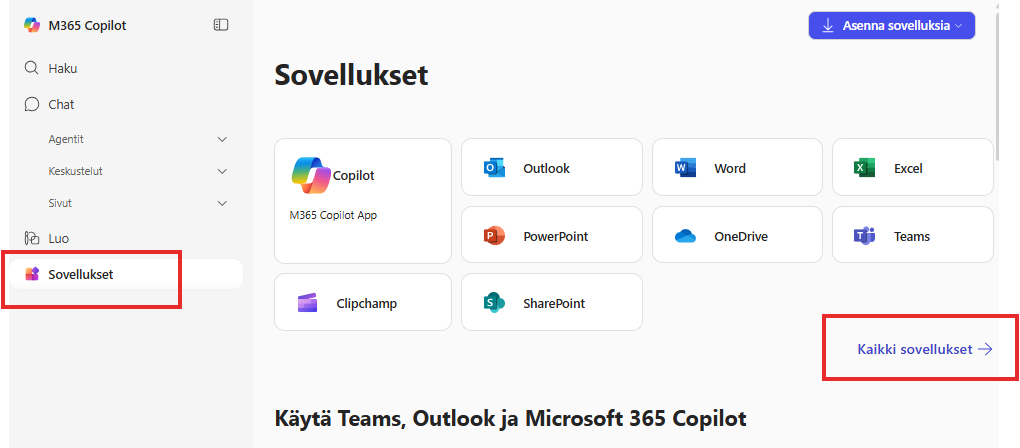
You can access the portal through several different addresses (https://portal.office.com, https://www.office.com/apps, https://www.microsoft365.com/, https://microsoft365.com/apps). For finding applications, a good address is https://m365.cloud.microsoft/apps. This way, the homepage immediately displays a list of applications, and you can find more applications behind the All Apps button. Log in with your TUNI credentials.
The menu of the portal
The biggest update to the portal is the menu on the left-hand side of the page. Previously, the waffle menu or app launcher, which contained all the applications, was in the upper left corner. You can still find the waffle menu, at least for now, in the view of individual applications, but it has been removed from the portal’s home page. It has been replaced by a menu on the left that includes the following sections:
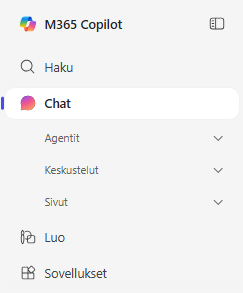
Search
In the search view, you can see the latest documents you have worked on and search for your files and content.
Chat
In this view, the focus is on Copilot chat, which is available to everyone. In the window that opens, you immediately see the chat window where you can write a prompt to the AI. Read tips for creating a prompt in this tip. You can select a file to which your question is directed from behind the + sign or give the prompt as a dictation instead of writing it by clicking the microphone icon.
Below the Chat section in the left-hand menu, you also see the Agents section. With so-called light agents, you can create chat windows that already have given prompts and instructions for responding. Read more in this tip. In the Chat section, you can also see the latest conversations you have had with the AI and, from the Pages section, the answers you have saved as pages.
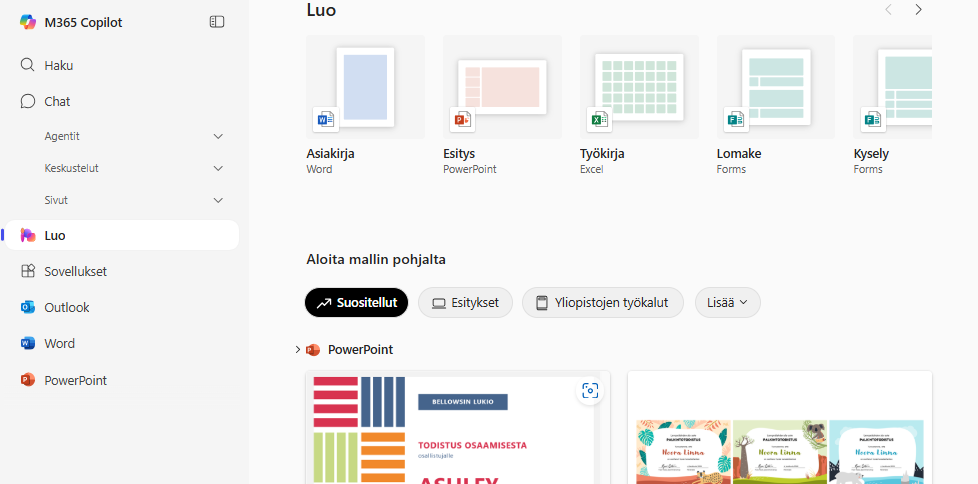
Create
In the left-hand menu, there is a new Create button. In this view, you can quickly create new files, presentations, and, for example, forms, surveys, and whiteboards using M365 tools.
Apps
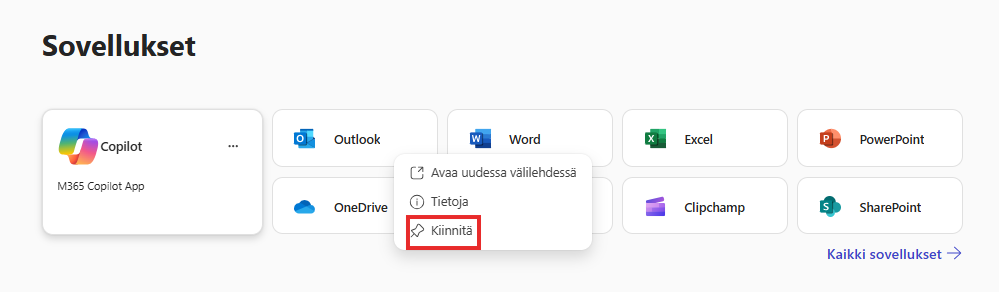
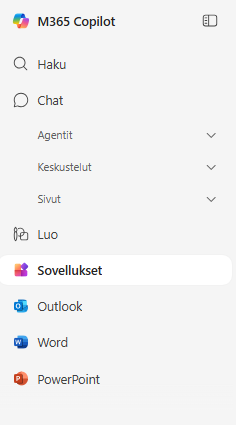
In the Apps section, you can see all the applications, i.e., tools available in the M365 portal. If you want to pin the most frequently used applications to the left-hand menu, you can do so from the three dots next to the app. Select Pin from the menu that opens, and the app will appear under the Apps section in the left-hand menu.
Explore the applications available in the service and find new assistants to support your work.
Read more: