
A wide range of different AI tools have emerged on the market in recent years, and even many familiar tools have gained features that utilize artificial intelligence. In everyday language, AI has come to mean generative AI applications that use large language models trained on vast amounts of data to understand prompts written in natural language and to respond with text, images, video, or audio. Artificial intelligence is not a new thing, but now it is more accessible and widely available to the general public than ever before.
Some AI tools are designed for very specific tasks, such as creating music or videos, while others are more general-purpose conversational AI tools. With some tools, users enter prompts in a dedicated app or website, while others integrate AI features within an existing tool, sometimes without the user even noticing. It is often difficult to compare tools, as their usefulness and suitability depend on the specific task and working methods in which the AI is used.
Among the growing selection of AI applications, organizations strive to select the tools that best serve their users. Staff and students of the Tampere University community have access to Copilot. It is part of the M365 service, which includes over 30 different tools (e.g., email, Word, PowerPoint…) to support work and study. There are two different Copilot options available: Copilot Chat, a conversational AI application available to everyone, and Microsoft 365 Copilot, which is available for an additional fee and is integrated into the tools of the M365 service.
This tip introduces both Copilot options in more detail.
1. Copilot Chat
Conversational AI chat available for free with a TUNI account
Copilot Chat is the easiest way to start using AI. Copilot Chat is available to all adult members of the Tampere University community with a TUNI account and, compared to free online AI tools, is a more secure option in terms of data security.
How to use Copilot Chat
You can find Copilot Chat in the M365 service at microsoft365.com/chat, or by opening the Copilot sidebar in the Edge browser. In both cases, make sure you are signed in. A green shield in the top right corner indicates you are logged in with your TUNI account.
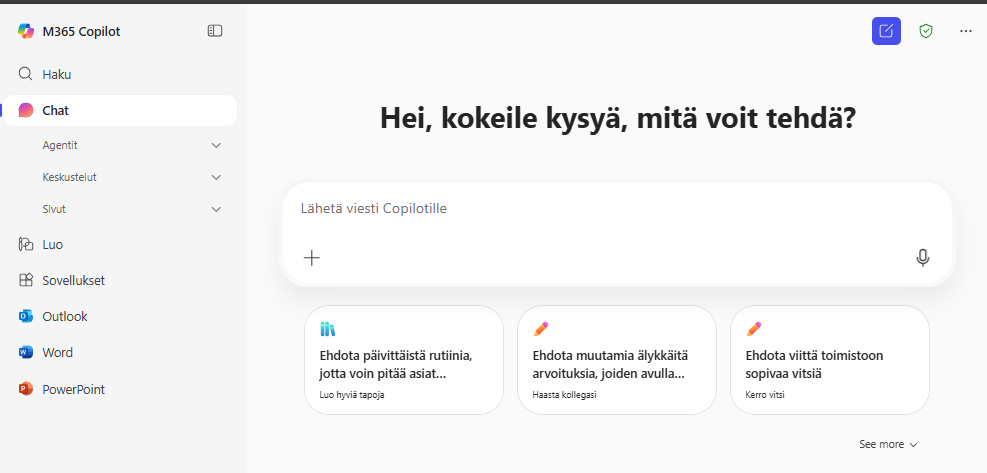
In the Edge browser:
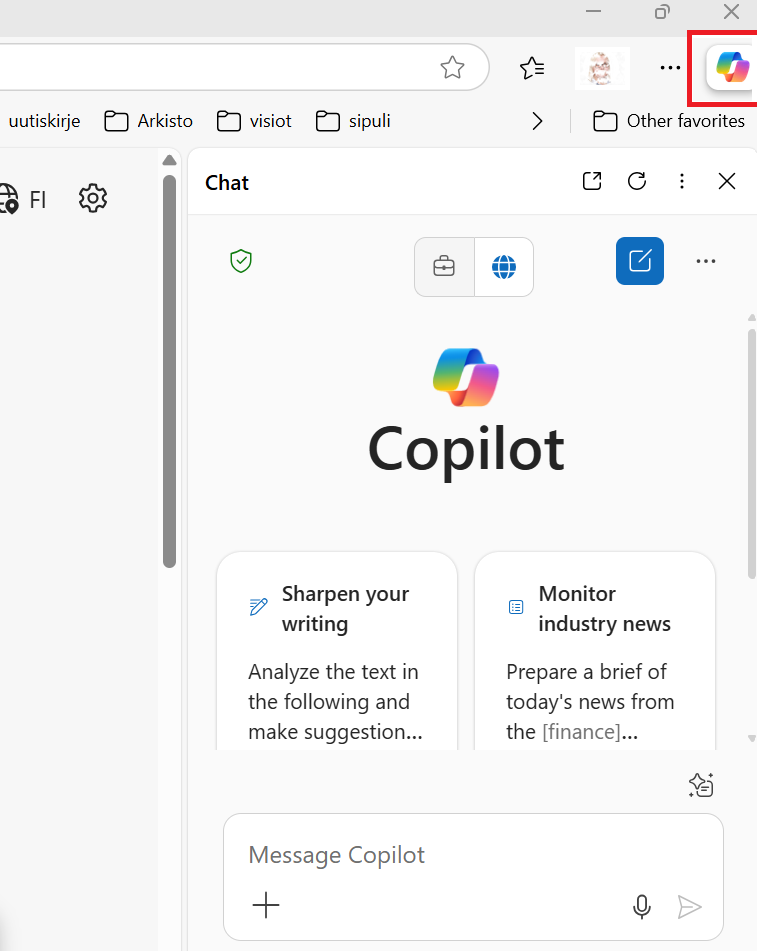
How to use Copilot Chat
You can ask Copilot Chat questions and it forms responses based on the data it has been trained on, as well as internet content. This multi-purpose chat can generate, according to your prompt, for example, ideas for plans and tasks, summaries, images, and diagrams. AI is not a search engine. Therefore it is at its best when producing content on a topic you already know, so that you can make precise, expert requests and assess the accuracy of the response.
Copilot Chat cannot access your files or any other personal materials unless you deliberately provide a file or content in the conversation. For example, you can upload a file if you want its contents to serve as the basis for the answer. In that case, remember not to upload confidential information with extra restrictions or secrets. (data classes in the intranet)
Write your question or request in the Copilot chat text box as clearly and in as much detail as possible, as if you were asking for help from an assistant who is not familiar with the topic. You can also upload an attachment or reference an open webpage in your browser if you want the answer to be based on them. To get better answers from Copilot, pay attention to how you formulate your prompts. Read the tip “Prompt Engineering for AI.”
The next tips provide more detailed information on Copilot Chat use cases:
Microsoft Copilot: Ten quick tips for smooth use
AI tips for teachers: Translation
Using Copilot for creating different types of content
Build AI assistants with Copilot Agent builder
Training
The key to benefiting from AI is to actively try it out and discover its possibilities and limitations in your own use case. Where does it fit your work? What kind of prompt creates useful answers?
Eduhouse trainings are free for staff and students. Complete the following Eduhouse training (Log in with your TUNI credentials using the log in with Microsoft account option, more information):
- Microsoft Copilot (please note: the old version of Copilot Chat is introduced, but usage principles remain unchanged).
- Copilot – basics (Sign up and join Teams training).
2. Microsoft 365 Copilot
AI assistant integrated into Office tools, email, and Teams available with extra fee
Microsoft 365 Copilot is AI assistant for staff. Unlike the free Copilot Chat, once you have obtained a Microsoft 365 Copilot license, you can use the Copilot button within M365 applications such as Word, Excel, PowerPoint, Outlook, and Teams. Through this button, you can access AI features related to the content within those applications. For example, in Word, the Copilot button allows you to reformat your text according to your prompt or translate text directly within the document. In PowerPoint, you can create a presentation based on a file or topic, and in Teams, ask it to take notes during an ongoing meeting.
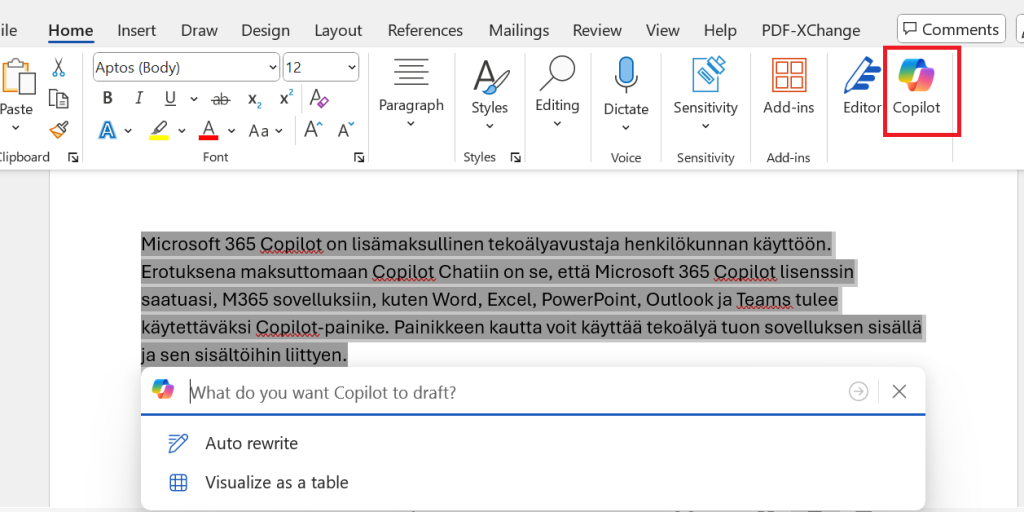
How to get Microsoft 365 Copilot
You need your supervisor’s approval to purchase Microsoft 365 Copilot. Read the order instructions from the intranet. Before ordering, familiarize yourself with the tool through some training to assess its use cases and necessity in your work.
How to use Microsoft 365 Copilot
AI functions vary by application. Unlike Copilot Chat, M365 Copilot has access to your files and other content in the M365 service. This is the advantage of the program: it can produce content and responses based on your own files and information. You can ask it to find conversations, emails, and files and to draft texts, presentations, and suggestions related to them. However, M365 Copilot can only process the data and files stored in the M365 service to which you yourself have access. If you wish, you can also exclude selected content from AI processing. This is possible because the university community has implemented a data classification model. With classification, you can prevent M365 Copilot from accessing files and messages containing confidential information (data classes 2 and 1). If you classify files or emails in these categories, M365 Copilot cannot access or read them.
Training
To get the most out of the paid application, complete Eduhouse’s M365 Copilot training, which presents the possibilities of M365 Copilot for each tool.
Complete Eduhouse’s Microsoft 365 Copilot learning path (Log in with your TUNI credentials using the log in with Microsoft account option, more information).
Read more
On the intranet’s AI in Tampere Universities page, you can find all AI instructions and recommendations written from different perspectives.