

Before the exam
- Check if you need an access card to enter the room
- Read the Terms of use for exam facilities
- Memorise your TUNI username and password, and the exam computer number
- Leave your outerwear and other belongings to the locker
In the beginning of the exam
Open the TUNI EXAM system from the desktop shortcut (EXAM), and sign into TUNI EXAM with your TUNI username and password. Signing does not require two-step auhentications, as you are not allowed to take your phone into the room. Please also note that it is not possible to use password management programs.
- Note! Log into the computer desktop simply by pressing Enter. TUNI username and password are used only to log into the EXAM-system.
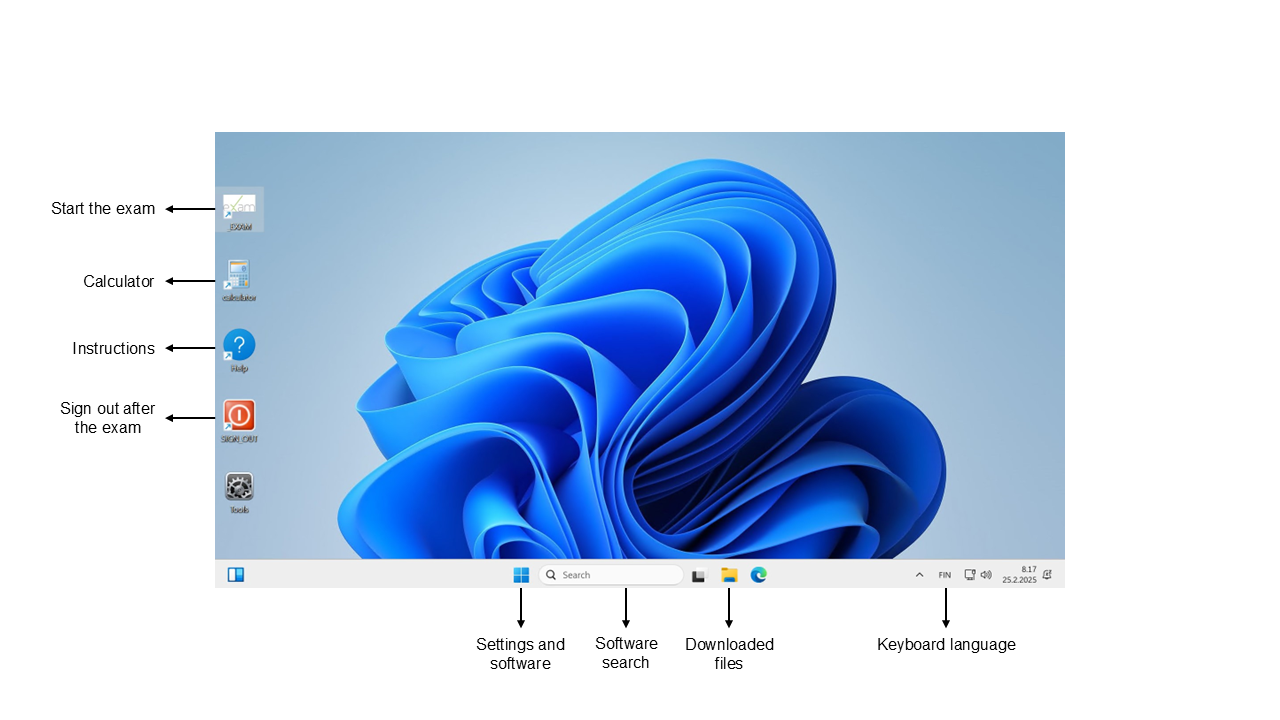
During the exam
At regular intervals, the TUNI EXAM system automatically stores the responses written in the system and uploaded as attachments to it. Check your answers and any attachments before completing the exam. Please note that files that are not attached to TUNI EXAM as attachments will not be forwarded to the examiner for assessment.
At the end of the exam
The exam ends when you have interrupted the exam, submitted your response, or when the exam completion time has expired, in which case TUNI EXAM will automatically forward your exam to the examiner for assessment. Once your exam has finished, you must leave the exam room.
Test exam
You can visit the exam room and take a test exam before the actual exam. The test exam will not be assessed, but otherwise the test exam works like a real exam, so be sure to follow the Terms of Use for Exam Facilities. Log in to TUNI EXAM as a student, after which you can find the exam with the exam search function or directly via the link below:
Exam visit
Exam visit means that you take an exam for a course unit of Tampere University or TAMK in an exam visit room of another higher education institution. You can check the target univeristies where an exam visit is possible on the Exam Consortium’s page (e-exam.fi).
- Note! The exam visit rooms of Tampere University or TAMK are intended only for students outside the Tampere Universities.
Read the exam visit instructions of the target university before making a booking. The instructions include, among other things, information about the opening hours of the exam visit room, how to access the room and what software is available on the computer. These determine whether it is possible to take the exam as an exam visit at the target university. Also read the rules for using the exam rooms of the target university, because the monitoring principles and terms of use of that institution’s exam rooms are followed there.
If you want to book an exam visit, log in to the TUNI EXAM system as usual and find the correct exam in the system. On the Reservation information page, click the Select room for exam visit button under the heading Choose room. Select the target university from the University menu. Then select from the Exam room menu the exam visit room where you want to take the exam. If you are a student in more than one university, log in with the credentials of the institution to the EXAM system of the institution whose course unit exam it is.
The primary location for taking electronic exams of the Tampere Universities is always the electronic exam room of your home university. In the most popular exam visit rooms, the booking situation may occasionally be congested. If no free exam times are available during the exam period, make a booking for an exam visit to another target university, Tampere University or TAMK exam room.
You can find links to the instructions of the target higher education institutions on the page EXAM – In English (e-exam.fi)
Problem situations
No technical support is available during an electronic exam. In the exam room, next to the computer, you will find instructions. Additionally, you can find solutions to the most common technical issues on the computer desktop by double-clicking the HELP icon.
If your exam is interrupted due to a technical fault, a disturbance in the room, or any other reason, log out of the computer, exit the exam room, and submit an interruption report. You should report the interruption as soon as possible by emailing exam@tuni.fi. Enter the following information in the e-mail:
- first name and surname
- TUNI e-mail address
- name of exam and examiner
- time of the exam interruption
- reason for the interruption